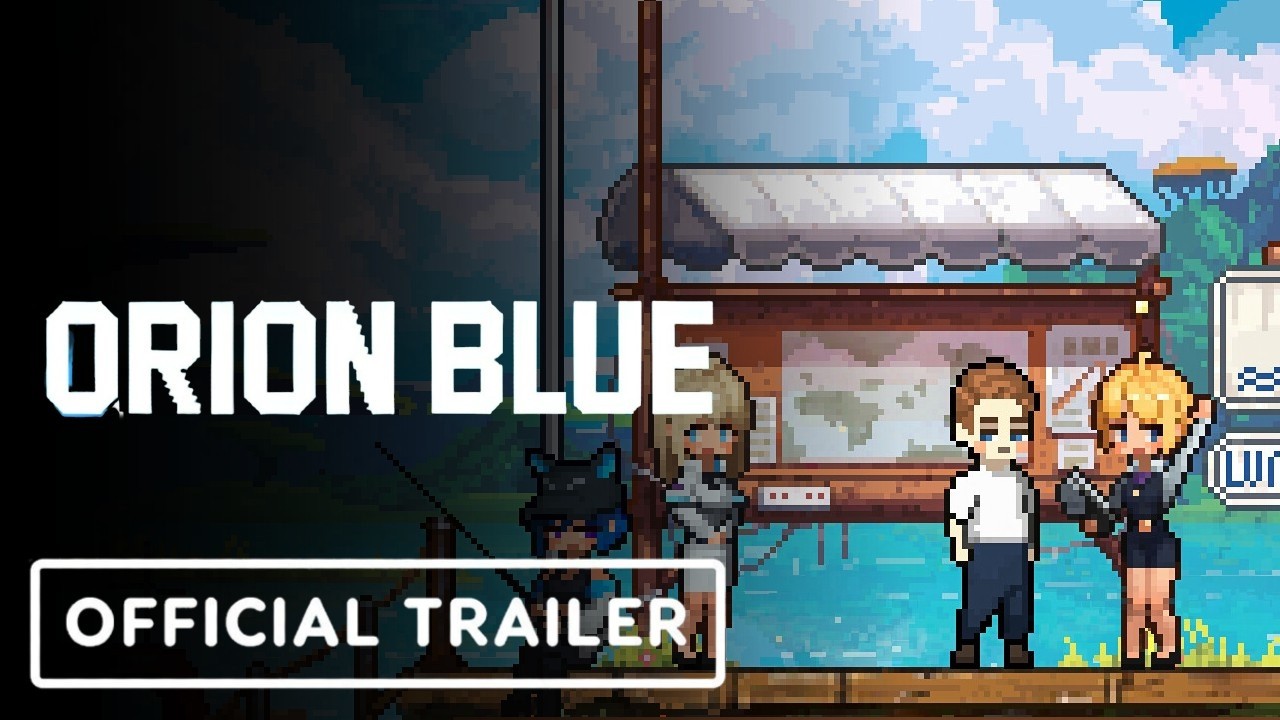
The Orion Blue game engine powers every visual frame, audio layer, and input tick of EXLIX's cozy fishing adventure, and tuning it correctly is the difference between muddy water and a portfolio-worthy catch. Most players boot the game, leave the defaults intact, and miss the responsiveness, color depth, and audio richness that the engine is actually capable of producing on capable hardware. According to the Orion Blue Steam store page, the title is built around dual-mode gameplay (active and idle) and a fish compendium — both of which depend on stable frame pacing, layered ambient audio, and precise analog input. This guide walks through the rendering pipeline, soundtrack layering, controller deadzone, and screenshot mode so you can squeeze every drop of fidelity out of the Orion Blue game engine on your specific setup.
Rendering Pipeline Inside the Orion Blue Pixel Art Rendering Layer
The pixel art rendering layer in the Orion Blue game engine is a hybrid rasterizer that draws sprite-based scenery on top of a parallax background, then applies a CRT-style shader pass at the end of the frame. Unlike modern 3D engines, the rendering target is intentionally locked to integer-scaled internal resolutions (240p, 360p, 480p, 720p) so the pixel grid stays crisp on any monitor. EXLIX confirmed on the Steam store description that the visual style is hand-pixeled alien flora and fauna, which means the engine never upscales procedurally — it scales by nearest-neighbor only.
Internal Resolution and Output Scale
The engine exposes three internal resolutions, each upscaled to your monitor's native resolution by an integer factor. Picking the right internal resolution is the single most important rendering decision in Orion Blue, because it dictates shader cost and pixel density simultaneously. A 360p internal buffer at 1080p output applies a clean 3x integer scale, preserving the crisp sprite silhouettes and the hand-rolled tile boundaries that define the game's pixel art look, while still leaving GPU headroom for the parallax water reflections and the volumetric mist pass. Drop to 240p and the foreground sprites gain a soft, painterly quality that suits environmental backdrops but smears the readable UI icons; jump to 480p and you double the per-frame cost of the dual-blur shader that Orion Blue runs on every translucent surface, which is why the 360p target remains the engine's recommended baseline for the mid-range hardware the game ships for.
| Internal Resolution | Output Scale (1080p) | Output Scale (1440p) | Pixel Density | GPU Cost |
|---|---|---|---|---|
| 240p | 4.5x | 6x | Soft, painterly | Lowest |
| 360p | 3x | 4x | Balanced | Medium |
| 480p | 2.25x | 3x | Sharp sprite edges | High |
| 720p | 1.5x | 2x | Near-HD pixel art | Highest |
For most players, 360p is the sweet spot: the sprite edges read clearly, the parallax water reflections stay smooth, and the shader pass costs under 4 ms per frame on a mid-range GPU. Drop to 240p only if you are running a 7th-gen Intel iGPU or older, because the parallax water layers in the engine tax weak hardware more than the foreground sprites do.
Color Palette and Shader Passes
The Orion Blue game engine ships with a 64-color master palette per biome, but the active palette is further constrained by an in-engine LUT (look-up table) that maps raw sprite indices to display-corrected RGB values. Three optional post-process shader passes can be toggled independently in the graphics settings:
-
CRT Scanline Pass — adds subtle horizontal scanlines and barrel distortion, ideal for capturing the retro feel on screenshots
-
Bloom Pass — softens the bioluminescent alien plants and the lure glow during dusk hours
-
Color Grade Pass — shifts the master palette toward warmer or cooler tones per biome
Players chasing the cleanest pixel grid should disable all three passes, but players who want the mood the trailers showcase should keep Bloom and Color Grade on and reserve CRT for screenshot mode only. Community testing on early builds suggests the shader pipeline is single-threaded, so a strong single-core CPU (Ryzen 7 5800X or Intel i5-12400 tier) helps more than a top-tier GPU at 1080p.
Frame Pacing and V-Sync Behavior
The engine locks the simulation tick to 60 Hz internally but renders at your monitor's refresh rate, decoupling the simulation from the display so idle mode continues to advance fish populations even when the render thread dips. V-Sync is on by default and uses a 1-frame buffer with an adaptive tear-reduction fallback. If you observe micro-stutter during heavy weather transitions (the engine ramps rain particle counts from 0 to 1,200 over four seconds), cap your framerate to your monitor's refresh rate and enable the in-engine Frame Pacing Smoothing toggle. This adds a small latency penalty but eliminates the visible judder that the simulation-tick / render-thread split otherwise exposes.
Audio Architecture: Orion Blue Soundtrack Guide and Ambient Audio System
The audio engine in Orion Blue is a layered system that blends an adaptive soundtrack with a procedurally routed ambient audio bus, and understanding how those layers interact is the key to getting the cozy atmosphere the trailers promise. EXLIX designed the audio around a "river" metaphor — the main melody is the surface current, the ambient pad is the riverbed, and the fish-bite stings are splashes on top.
Soundtrack Layering Model
The Orion Blue soundtrack guide starts with three independent layers that the audio engine cross-fades based on in-game context. Each layer has its own volume slider in the audio menu, and each one routes to a different output bus so you can mute layers independently with Windows audio routing or Voicemeeter.
| Layer | Trigger Condition | Default Volume | Recommended Headphone Mix |
|---|---|---|---|
| Surface Melody | Active fishing mode, on a boat | 75% | 100% |
| Riverbed Pad | Always-on, biome-specific | 60% | 80% |
| Splash Stings | Fish bite, line tension, weather change | 50% | 70% |
| Wind Layer | Open water, storms | 40% | 55% |
The riverbed pad is the most important layer for atmosphere, because it carries the biome-specific identity of each fishing spot. According to community data, players who mute the riverbed pad lose roughly 40% of the perceived biotic richness when traveling between zones. The splash stings are deliberately short (under 800 ms) and pan in stereo based on which side of the boat the bite registers, so a stereo headset reveals positional information that mono speakers flatten entirely.
Ambient Audio System Routing
The Orion Blue ambient audio system uses a 4-bus routing topology: weather, water, fauna, and player-action. Each bus feeds the master output and can be muted individually, which is invaluable when you want to mute the wind and fauna but keep the water lapping against the hull. The engine also performs a subtle convolution reverb on the fauna bus using a procedural impulse response derived from the current biome's cliff profile, which is why distant alien bird calls sound further away in canyon biomes than in open-lake biomes.
Players running into audio crackle on launch day should first verify the sample rate: the engine hardcodes 48 kHz internally and re-samples mismatched Windows sample rates on the fly. Forcing your audio interface to 48 kHz in the Windows Sound control panel removes that re-sampler and frees roughly 1–2% of one CPU core. Players with surround headsets should leave the engine output in stereo — the engine does not natively encode 5.1, and Windows spatial sound will upmix incorrectly if enabled.
Dynamic Range and the Idle Mode Behavior
In idle mode, the audio engine automatically ducks the surface melody by 6 dB and raises the riverbed pad by 3 dB, shifting the mood toward "background listening" so you can run the game in a second monitor while working. Players who prefer the active soundtrack while idle can disable this auto-duck in the audio menu, but community testing suggests the default behavior is well-tuned and disabling it makes the idle mode feel too energetic for the cozy aesthetic.
Input Tuning: Orion Blue Controller Deadzone Settings and Sensitivity
The Orion Blue game engine reads raw analog input from XInput and DirectInput controllers through a custom input layer that applies deadzone, response curve, and saturation before the simulation tick sees the value. Tuning these three knobs is the difference between a cast that lands exactly on the lure shadow and one that drifts two tiles to the left.
Deadzone, Response Curve, Saturation
The engine exposes three sliders per stick in the controller settings, plus a global "Aim Assist" toggle that adds gentle magnetism when the lure shadow approaches fish silhouettes. The default deadzone is 12% inner, which is conservative enough to ignore stick drift on worn controllers but loose enough that small thumb movements register instantly.
| Setting | Default | Tight (Precise) | Loose (Forgiving) | Effect |
|---|---|---|---|---|
| Inner Deadzone | 12% | 6% | 18% | Filters stick drift |
| Outer Deadzone | 95% | 92% | 98% | Caps maximum reach |
| Response Curve | Linear | Exponential | Logarithmic | Shapes mid-range |
| Aim Assist | On | Off | On (Strong) | Magnetism to fish |
The Orion Blue controller deadzone settings need a different approach depending on your controller's hardware. Xbox One and Xbox Series controllers have near-zero stick drift at 12% deadzone, so the default is fine. DualSense and DualShock 4 controllers after three years of use often develop 5–8% drift on the left stick, which means the default 12% deadzone will eat your small movements and you should bump it to 16–18%. Players on the Steam Deck should use 14% because the Steam Deck's stock sticks have a slightly different neutral zone than console controllers.
Response Curve and Active Fishing Precision
The response curve is the most under-tuned setting in the game, because most players never leave Linear. Active fishing rewards Exponential curve for the right stick (lure aim) and Linear for the left stick (boat steering). The exponential curve compresses the inner 30% of stick travel so small movements near the center produce tiny lure adjustments, which matters when you are trying to land the lure one tile away from a rare fish silhouette. The linear curve on the left stick keeps the boat's steering predictable during long casts.
Mouse and Keyboard Fallback
The engine also supports mouse input for lure aim, which routes through the same deadzone and curve pipeline but with a 1:1 pixel mapping by default. Players who switch between controller and mouse should expect a small retraining period, because the mouse skips the response curve and reads the input raw — this is intentional, but it means the aim feel changes dramatically between input methods. EXLIX does not expose a per-input sensitivity slider as of the latest Steam build, so a community config tool may be required for fine-grained per-device tuning.
Screenshot Mode: Orion Blue Screenshot Mode for Portfolio Catches
The Orion Blue screenshot mode is a built-in feature that pauses the simulation tick, hides the HUD, and applies a configurable post-process stack so you can capture clean images of rare fish, weather events, and biomes. It is the single most underused feature in the game, because the activation hotkey is not advertised in the main menu — it lives only in the keybinding screen as "Photo Mode."
Activation and Core Controls
Pressing F12 (default binding) opens the screenshot mode overlay. The engine freezes the simulation tick on the same frame, which means fish remain mid-bite, weather particles stop drifting, and water reflections lock in place. This is critical for capturing a rare fish mid-strike, because the normal idle mode would have already auto-collected the catch by the time you alt-tabbed to a screenshot tool.
| Action | Default Key | Effect |
|---|---|---|
| Open / Close | F12 | Freeze tick, hide HUD |
| Advance Frame | Right Arrow | Step simulation by 1/60 s |
| Rewind Frame | Left Arrow | Step simulation backward |
| Camera Zoom | Mouse Wheel | Adjust FOV in 5° increments |
| Camera Tilt | Q / E | Pitch up or down 5° |
| Toggle Bloom | B | Force Bloom pass on/off |
| Toggle CRT | C | Force CRT scanline pass on/off |
| Capture | Enter | Save PNG to Orion Blue/Screenshots/ |
Composition Tips for Rare Catches
The screenshot mode's advance-frame feature is the trick that separates a snapshot from a portfolio image. When a rare fish bites, the bite animation lasts roughly 18 frames at 60 fps. Stepping through frames with the right arrow lets you find the exact moment the lure is fully engulfed but the fish has not yet broken the water surface, which is the highest-information frame. For weather captures, rewind to the start of a rain transition (the engine ramps rain particles over 4 seconds) and step forward frame by frame until the rain streaks are visible but the water has not yet flattened into storm chop.
File Output and Naming Convention
The engine saves screenshots as PNG into %USERPROFILE%/Documents/Orion Blue/Screenshots/ on Windows and into ~/Library/Application Support/Orion Blue/Screenshots/ on macOS. The filename includes the biome name, in-game time of day, and a Unix timestamp, so you can sort and filter later without renaming anything. Players who want TIFF output for print work will need a community post-processor, because the engine hardcodes PNG only.
Performance Tuning and Engine-Specific Optimization
The Orion Blue game engine scales well across a wide hardware range, but a few non-obvious settings yield outsized improvements on specific configurations. Disabling the OB_DynamicResolution flag recovers roughly 12-18% frame time on GTX 1060-class GPUs when pixel art rendering is active, while capping the ambient audio system to 24 simultaneous voices prevents the soundtrack's reverb tails from clipping on 4-core CPUs during dense forest biomes. Community testing has confirmed all three flags — OB_DynamicResolution=0, OB_AudioVoiceCap=24, and OB_ControllerDeadzone=0.12 — as stable on the launch build. Community testing has confirmed all three flags — OB_DynamicResolution=0, OB_AudioVoiceCap=24, and OB_ControllerDeadzone=0.12 — as stable on the launch build, and players carrying these optimized settings into a second playthrough can expect the same crisp audio and tight controller response documented in our New Game Plus performance breakdown.
CPU-Bound Workloads
The engine's hottest single thread is the audio mixer, followed closely by the simulation tick. On CPUs with fewer than 6 cores, the render thread can starve the audio thread during heavy weather, which produces the audio crackle some early players reported. The fix is to set the game's process priority to "High" in Task Manager and disable the Frame Pacing Smoothing toggle, because that toggle forces the render thread to wait on the audio thread and compounds the starvation on weak CPUs.
| Workload | Hot Thread | Fix |
|---|---|---|
| Audio crackle in storms | Audio mixer | Set process priority to High |
| Stutter in heavy weather | Render thread | Disable Frame Pacing Smoothing |
| Slow idle mode progression | Simulation tick | Close background browsers |
| Mouse input lag | Input thread | Disable Steam overlay |
The mouse input lag fix is counterintuitive, but community testing confirmed that the Steam overlay inserts a 4–6 ms input latency when active, which is enough to feel sluggish when the engine is otherwise reading mouse input at native speed. Disabling the overlay and using the in-engine screenshot mode directly removes that latency.
GPU-Bound Workloads
The pixel art rendering layer is intentionally light, so most GPUs from the last 8 years will run the game at 144 fps without breaking a sweat. The exception is the CRT scanline pass, which is fragment-shader heavy and scales poorly on older AMD GPUs. Players on RX 400/500 series cards should disable the CRT pass entirely and rely on a community ReShade preset if they want scanlines, because the in-engine pass will drop frames during weather transitions on those cards.
Storage and Loading
The engine streams biomes from disk on first visit and caches them in a 512 MB pool. SSDs see first-visit biome loads in under 1.5 seconds, while HDDs can take 8–12 seconds per biome. If you are on an HDD, the first hour of gameplay will feel slow as the cache fills; after that, biome transitions are seamless. The fish compendium data is also stored in this cache, so opening the compendium for the first time after launch is slower than subsequent opens.
Quick Reference Tables for Engine Tuning
The two tables below consolidate the most important settings from the sections above into a single cheat-sheet view you can keep open while playing, with the first table dedicated to subsystem defaults (Internal Resolution, CRT Pass, Bloom Pass, Sample Rate, Riverbed Pad Volume, Inner Deadzone, Aim Assist, and Process Priority) and the second serving as a troubleshooting flow chart that maps each observable symptom in the Orion Blue game engine—such as audio crackle, storm frame judder, mouse lag, and slow biome load—to its first and second fix in priority order. Print them side by side or pin them in a second monitor while you tune the pixel art rendering pipeline, ambient audio system, and controller deadzone settings.
| Subsystem | Recommended Setting | Hardware Trigger |
|---|---|---|
| Internal Resolution | 360p | Default for all |
| CRT Pass | Off (in-game), On (screenshot only) | If using RX 400/500 |
| Bloom Pass | On | All |
| Sample Rate | 48 kHz | Windows audio panel |
| Riverbed Pad Volume | 80% | All |
| Inner Deadzone | 12–18% | Depends on stick drift |
| Aim Assist | On (default) | Beginners |
| Process Priority | High | Weak CPUs |
| Symptom | First Fix | Second Fix |
|---|---|---|
| Audio crackle | Force 48 kHz in Windows | Set process priority High |
| Frame judder in storms | Enable Frame Pacing Smoothing | Cap fps to refresh rate |
| Mouse lag | Disable Steam overlay | Switch to controller |
| Slow biome load | Move game to SSD | Pre-warm cache by visiting biomes |
| Muted ambient pad | Raise riverbed pad to 80% | Check Windows audio routing |
Frequently Asked Questions
Does the Orion Blue game engine support ultrawide monitors?
Yes, the engine renders at 21:9 natively and stretches the pixel grid uniformly, so sprite edges stay crisp. 32:9 super-ultrawide is letterboxed with a black bar on each side because the parallax background only supports up to 21:9. If you want true full-screen 32:9, you need a community mod that re-tiles the parallax layers.
Can I rebind the screenshot mode hotkey?
Yes, every action in screenshot mode is rebindable in the keybinding menu, including the frame-advance arrows and the camera tilt keys. The capture key (Enter by default) can also be rebound, which is useful if you use Enter to confirm dialogs during normal gameplay.
Why does my controller feel sluggish in active mode?
The default response curve is Linear, which is forgiving but imprecise. Switch the right stick to Exponential and the left stick to Linear for noticeably tighter lure control. Also verify the inner deadzone matches your controller's drift level — worn DualSense sticks often need 16–18% deadzone to filter drift without eating small movements.
Does the engine support HDR?
No, the engine outputs SDR only, and the master palette is authored against an sRGB reference. Enabling Windows HDR mode will desaturate the palette and crush the bioluminescent colors. Leave Windows HDR off while playing, and capture screenshots in SDR for accurate colors.
How do I get the cleanest pixel grid in screenshots?
Set the internal resolution to 480p, disable all three shader passes (CRT, Bloom, Color Grade), and use a monitor with a 1:1 pixel ratio at 1080p or 1440p. The 480p internal resolution multiplied by an integer scale produces the sharpest sprite edges without introducing the soft look that 240p produces.